
GEDCOM (.ged) is the standard file format for exchanging genealogy data between applications. If you have an existing family tree in any desktop genealogy software or on a website such as Ancestry.com, exporting a GEDCOM and importing it into AncestorPress is far faster than entering members manually.
Before you import #
- Your GEDCOM file must use UTF-8 character encoding. This is the most common cause of failed imports — see troubleshooting below if your import completes but no members appear.
- GEDCOM 5.5 and 5.5.1 are supported.
- Maximum file size is 10MB.
- You may need to allow a little time for large GEDCOM files to upload and process - depending on your internet connection and hosting server capacity.
Step 1: Export a GEDCOM from your genealogy software #
Follow the instructions for your application:
Ancestry.com #
Open your tree → Tree Settings → Export tree. Select GEDCOM format and download.
MyHeritage #
Manage tree → Export to GEDCOM.
FamilySearch #
Tree tools → Export GEDCOM.
Gramps #
Family Trees → Export → GEDCOM. Ensure UTF-8 is selected as the encoding.
MacFamilyTree #
File → Export → GEDCOM file.
Reunion (Mac) #
File → Export → GEDCOM 5.5, UTF-8. Explicitly selecting UTF-8 is essential — Reunion's default encoding causes import failures in AncestorPress.
Family Tree Maker #
File → Export. Choose GEDCOM format and select UTF-8 encoding.
Legacy Family Tree #
File → Export to → GEDCOM file. Select UTF-8 in the encoding options.
Step 2: Run the import #
- Go to AP Family Trees → Migration Tools → GEDCOM Import
- Enter a tree name — this creates a lineage with this name
- Click Choose File and select your .ged file
- Click Import GEDCOM
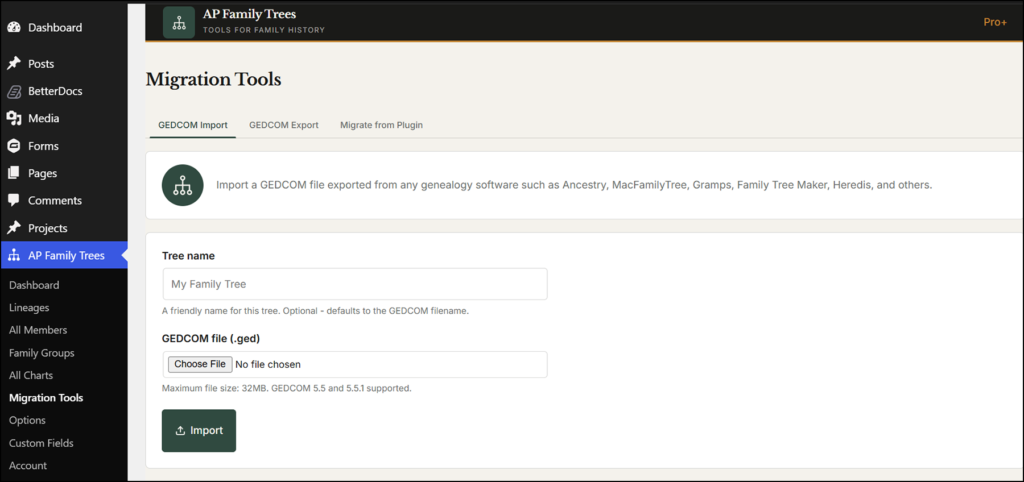
📸 SCREENSHOT: AncestorPress → Migration Tools screen showing the tree name field, file upload button, and Import GEDCOM button
For larger files the import may take 30 to 60 seconds. Do not close the browser tab while it runs.
Step 3: After the import #
On completion you will see a summary showing how many members were imported, and links to the automatically created tree page and members page. Visit these pages to confirm your data has imported correctly.
Your members are now in AP Family Trees → All Members and a Lineage has been created with the name you entered. You can now create charts using this data.
Importing into an existing Family Group #
CARE! Importing GEDCOM into a lineage will over write the exisitng lineage information. Additional lineages can be created in Pro and Pro Plus versions of the plugin where you can import seperate GEDCOM files.
Troubleshooting: import completed but no members appeared #
This is almost always a character encoding issue. Your GEDCOM file is not using UTF-8 encoding. Fix it by re-exporting from your genealogy software and explicitly selecting UTF-8 as the character encoding. Reunion for Mac users must select GEDCOM 5.5 with UTF-8 specifically - the default export uses a different encoding that AncestorPress cannot read.
If you are unsure what encoding your file uses, open it in a text editor and check for garbled characters around accented letters or special characters. If you see characters like é instead of é, the file is not UTF-8 encoded.
Troubleshooting: import fails with an error message #
- File too large - your file exceeds 10MB. Split the export into smaller files if your software supports it, or contact your hosting provider to increase the upload size limit.
- Invalid GEDCOM file - the file may be corrupted or in an unsupported format. Try re-exporting.
- Timeout - very large files may time out on shared hosting. Try increasing the PHP max execution time in your hosting settings, or contact support.