
A Chart is how AncestorPress displays your family tree. Each Chart is a WordPress post that stores the chart type, the starting person, the family lineage to draw from, and display settings. You can have multiple Charts showing different views of the same family data - for example, a descendant chart and a pedigree chart from the same root person on separate pages.
Creating a new chart #
- Go to AncestorPress → All Charts → Create New Chart section
- Enter a name for the chart - this is an internal label and is not displayed to visitors
- In the complete the fields you need:
- Chart Style - select the type of chart to display. See Chart Types for a description of each option.
- Root Person - the person the chart starts from. For descendant charts this is the oldest ancestor; for ancestor charts this is the youngest person. ID can be found in the All Members page.
- Lineage - select which family lineage's data to use
- Generations - the number of generations to display
- Review other settings
- Click Publish
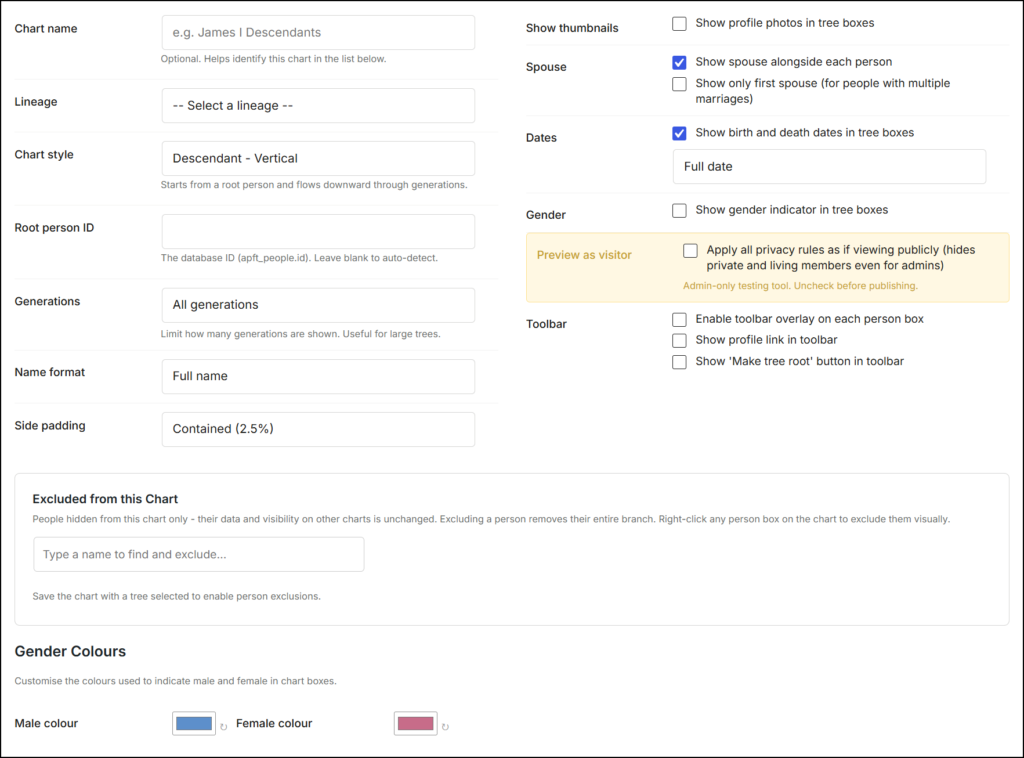
📸 SCREENSHOT: AncestorPress → All Charts → Create New Chart screen showing the Chart Settings panel with Chart Type, Root Person, Lineeages , and Generations fields, etc.
Finding the Chart ID #
After publishing, go to AncestorPress → All Charts. and scroll down to the All Charts section. The ID column shows the number for each chart. You need this to display the chart using a shortcode but you can also see the whole shortcode in the same table.
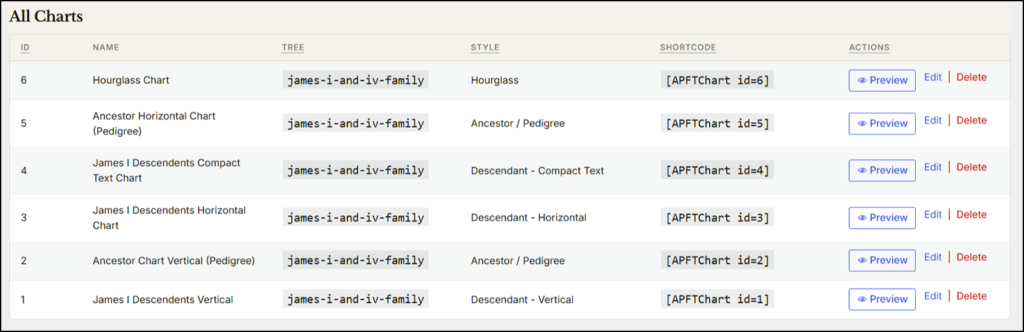
📸 SCREENSHOT: AncestorPress → All Charts list view showing the ID column and Shortcode
Displaying a chart on a page #
Create or edit a WordPress page. Add a Shortcode block and enter a shortcode in this format:
[APFTChart id=1]Replace 1 with your Chart ID. You can also use the AncestorPress Chart block in the Gutenberg block editor - search for "Family" in the block inserter and select the Chart block, then choose your chart from the dropdown.
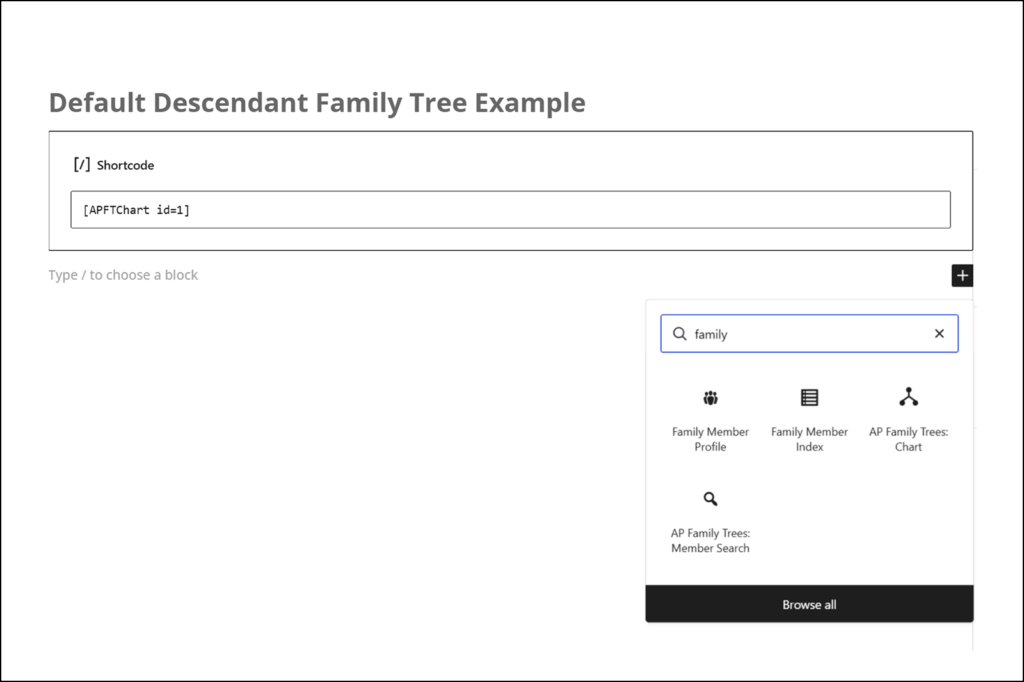
📸 SCREENSHOT: Gutenberg block inserter showing the AncestorPress Chart block in the search results
Editing a chart #
Go to AncestorPress → All Charts, scroll down to the charts list and on the right, click Edit. Changes to chart settings take effect immediately on any page displaying that chart. You do not need to update the shortcode or block when you change settings.
Multiple charts #
You can create as many charts as you need. Common uses for multiple charts include:
- Different chart types showing the same family - for example, a descendant chart and an hourglass chart from the same root person
- Charts starting from different root people to show specific family branches
- Separate charts for separate linages (Pro)
Each chart gets its own ID and its own shortcode. Embed them on separate pages or on the same page.