
AncestorPress Pro and Pro Plus can export your family tree data as a GEDCOM file. This creates a standard .ged file you can open in any genealogy application, import into another website, or keep as a backup.
Running an export #
- Go to AP Family Trees → Migration Tools → GEDCOM Export tab
- Select the lineage you want to export
- Click Export GEDCOM
A .ged file downloads to your computer immediately.
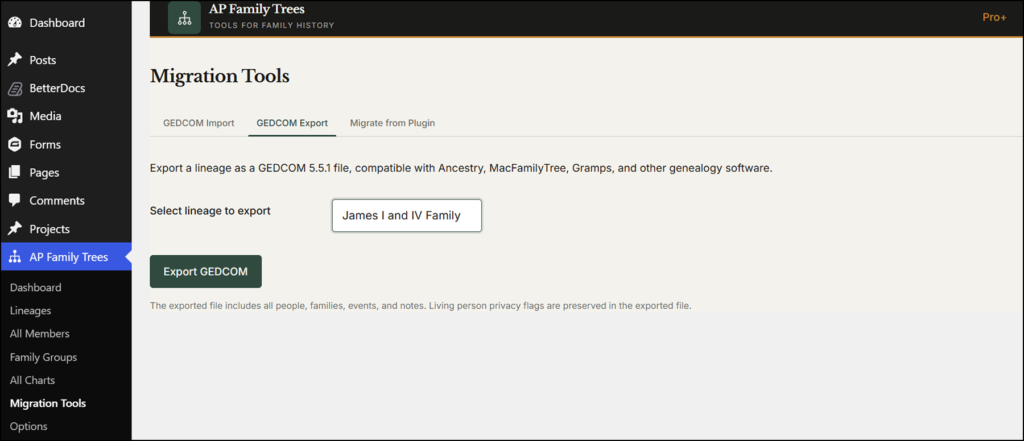
📸 SCREENSHOT : AncestorPress → Export screen showing the lineages selector and Export GEDCOM button
What the export includes #
The exported GEDCOM file includes all members in the selected lineage with their names, dates, places, relationships, and notes. Profile photos and custom field data are not included in the GEDCOM export - the GEDCOM format does not support these.
Using the export file #
The exported .ged file can be:
- Opened in desktop genealogy software such as Gramps, MacFamilyTree, Reunion, or Family Tree Maker
- Uploaded to genealogy websites such as Ancestry.com, MyHeritage, or FamilySearch
- Imported into another WordPress site running AncestorPress
- Stored as a backup of your tree data
Backing up your data #
GEDCOM export is a useful but partial backup - it captures your genealogy data but not photos or custom fields. For a full backup of your WordPress site including all AncestorPress data, use a WordPress backup plugin such as UpdraftPlus or your hosting provider's backup system.