
A GEDCOM (.ged) file is a plain-text file that holds your family tree - people, families, dates, places and sources - in a format almost every genealogy program can read. It is how you back up your tree, move it to another program, share it with a relative or publish it on your own website. This guide explains what is inside one, how to open it, and how to create or download one.
Quick answer
A GEDCOM file is a plain-text file, ending in .ged, that holds your family tree in a standard format that almost every genealogy program can read. It stores people, families, dates, places, events, notes and sources. It does not store your photos or documents. You create one by exporting your tree, and you open one by importing it into genealogy software or an online tree.
In this guide
- What does GEDCOM stand for?
- What is inside a GEDCOM file?
- GEDCOM versions: 5.5.1 and 7.0
- How to open a GEDCOM file
- How to download a GEDCOM file from Ancestry
- How to download a GEDCOM file from other services
- How to create a GEDCOM file
- Common GEDCOM problems and how to fix them
- Keep living relatives private
- Putting your GEDCOM file on your own website
- Frequently asked questions
- Put your GEDCOM file to work
What does GEDCOM stand for?
GEDCOM stands for GEnealogical Data COMmunication. The format was created in 1984 by the Family History Department of The Church of Jesus Christ of Latter-day Saints, which runs FamilySearch, so that family history could be exchanged between different computer programs.
Forty years on, it is still the common language of genealogy. Different programs store your tree in different ways internally, but nearly all of them can read and write GEDCOM. That makes it the one format you can rely on to get your research out of one product and into another.
What is inside a GEDCOM file?
A GEDCOM file is a list of records, one after another, written as text. The main ones are:
| Record | What it holds |
|---|---|
| Individuals | Each person's names, sex, and events such as birth, baptism, marriage, death and burial, with dates and places |
| Families | Links between a couple and their children, which is how the tree's structure is rebuilt |
| Sources | The records you used, such as a census, register or certificate, and citations linking them to facts |
| Notes | Your research notes and biographical text |
| Media links | References to photo and document files, but not the files themselves |
| Header | Which program created the file, when, and in which GEDCOM version |
Each person and family has an ID, such as I12 or F4, and the family records point to those IDs. When another program imports the file, it follows those links to rebuild your tree.
What a GEDCOM file looks like
Here is a small, simplified file for a couple and their son. Our notes are on the right; they are not part of the file.
0 HEAD                      header: which program made the file
1 GEDC
2 VERS 5.5.1                GEDCOM version
1 CHAR UTF-8                text encoding
0 @I1@ INDI                 a person, with the ID I1
1 NAME John /Smith/         surname goes between slashes
1 SEX M
1 BIRT                      a birth event...
2 DATE 12 MAR 1881          ...and its details, one level down
2 PLAC Leeds, Yorkshire, England
1 FAMS @F1@                 John is a spouse in family F1
0 @I2@ INDI
1 NAME Mary /Brown/
1 SEX F
1 FAMS @F1@
0 @I3@ INDI
1 NAME William /Smith/
1 FAMC @F1@                 William is a child in family F1
0 @F1@ FAM                  a family record
1 HUSB @I1@
1 WIFE @I2@
1 CHIL @I3@
1 MARR
2 DATE 1905
0 TRLR                      trailer: end of file
Every line starts with a level number: 0 begins a new record, 1 is a detail of that record, and 2 is a detail of the detail. People never point directly at each other. They connect through family records (FAM), where FAMS marks someone as a spouse and FAMC as a child. Other record types include SOUR (sources), NOTE (notes), OBJE (media) and REPO (repositories). The file always opens with a header (HEAD) and closes with a trailer (TRLR).
What a GEDCOM file does not include
- Photos, scans and documents. Most exports only include a link or file name, not the image.
- DNA matches and ethnicity results. These stay with your testing company.
- Hints, record matches and collaboration history from online services.
- Everything a program adds of its own. Programs extend GEDCOM with custom fields, and other programs may ignore or mangle them.
So a GEDCOM file is an excellent copy of your research data, but not a complete backup of everything you see in your online tree.
GEDCOM versions: 5.5.1 and 7.0
You will mainly meet two versions:
- GEDCOM 5.5.1 dates from 1999 and is still the version almost every program exports and imports. If you are asked which version to choose, this is the safe option.
- GEDCOM 7.0 was published by FamilySearch in 2021 and is updated regularly; the current release is 7.0.18, from February 2026. It requires modern text encoding (UTF-8), clears up many ambiguities, and adds GEDZIP, a zip format that bundles the GEDCOM file with its photos and documents.
GEDCOM 7 is better, but support is still patchy. Unless you know the program you are sending the file to reads version 7, export 5.5.1.
How to open a GEDCOM file
Double-clicking a .ged file often does nothing useful, because your computer has no program set to open it. A GEDCOM file is meant to be imported, not opened like a document. You have four options.
1. Import it into genealogy software
This is the best way to see and work with the tree. Free options include:
- Gramps, free and open-source, for Windows, Mac and Linux
- RootsMagic Essentials, the free edition of RootsMagic, for Windows and Mac
- Legacy Family Tree 10, now completely free, for Windows only
- MyHeritage Family Tree Builder, free, for Windows
Paid programs such as Family Tree Maker, RootsMagic, Family Historian and MacFamilyTree also import GEDCOM. In most of them, choose File > Import (or New > Import) and select the .ged file. The program creates a new tree from it and leaves the original file unchanged.
2. Upload it to an online family tree
Ancestry, MyHeritage and Findmypast all let you upload a GEDCOM file to create a new online tree, and FamilySearch accepts uploads to its separate Genealogies collection. Check the privacy setting before you upload: Ancestry trees, for example, are public by default.
For a quick look without installing anything or creating an account, free browser-based viewers such as Kinfoly, GED-VIEW and GEDCOM Explorer display the tree in your web browser. Several say they read the file on your own computer and never upload it, but not all do, so read the privacy notice before you use one, particularly if the file includes living relatives.
3. Look at it in a text editor
Because it is plain text, you can open a GEDCOM file in Notepad on Windows or TextEdit on a Mac. You will see lines of numbers, short tags and names. That is useful for checking what a file contains, but not for reading your tree. Work on a copy, and never edit and save it in a word processor such as Word, which can corrupt it. The CHAR line near the top shows the text encoding: if accented names look wrong, an older encoding such as ANSEL is usually the reason.
4. Publish it on your own website
If you want to share the tree with family rather than just view it, you can import the GEDCOM file into a website. See putting your GEDCOM file on your own website below.
How to download a GEDCOM file from Ancestry
Ancestry lets the owner of a tree download it as a GEDCOM file. Use a web browser on a computer, not the mobile app.
- Sign in to Ancestry and open the tree you want to export.
- In the left-hand toolbar, click More (the three dots) and choose Tree Settings.
- Under Manage your tree, click Export tree, then click Export to confirm.
- Wait while Ancestry generates the file. Large trees can take a few minutes.
- Click Download your GEDCOM file and save it. It arrives as a zip file, usually in your Downloads folder. Unzip it to get the .ged file before you import it anywhere.
Three things to know:
- Only the tree owner can export. If someone has shared a tree with you, even as an editor, you will need to ask the owner.
- Photos and documents are not included. Your facts, notes and Ancestry source citations are. Files exported since November 2022 record where each image is stored on Ancestry, but not the image itself. To keep your images, download them separately or sync the tree to RootsMagic or Family Tree Maker, which can bring the media across.
- Exporting does not change or delete your online tree.
How to download a GEDCOM file from other services
MyHeritage
- Sign in and hover over Family tree, then choose Manage trees.
- Click Export to GEDCOM next to the tree you want.
- Choose whether to include photos, then click Begin the export.
- Depending on the size of the tree, the file either downloads straight away or MyHeritage emails you a link to download it.
Even with photos included, the GEDCOM file holds links to the photos rather than the images themselves.
FamilySearch
You cannot download a GEDCOM file directly from the FamilySearch Family Tree. FamilySearch says this is because the shared tree holds information, such as reason statements, that the widely used GEDCOM version cannot store. Instead, use software certified to work with FamilySearch, such as RootsMagic or Ancestral Quest, to download the people you want and then export a GEDCOM file from that program.
Findmypast
Go to My Family Tree, view all your trees, and click the Export tree icon next to the tree you want. As elsewhere, the file holds your facts and sources but not your images.
How to create a GEDCOM file
You create a GEDCOM file by exporting your tree from the program or website where you keep it. The steps are almost the same everywhere:
- Open your tree in your genealogy software or online service.
- Find the export option. In desktop software it is usually File > Export. Online, it is usually in the tree's settings.
- Choose GEDCOM as the format, and version 5.5.1 if you are asked.
- Choose what to include. Pick the whole tree or a branch, and decide whether to include notes, sources and living people.
- Save the .ged file somewhere you will find it, with a name that includes the date, such as smith-tree-2026-09.ged.
- Check the file by importing it into a second program and looking at a few families.
How to make a GEDCOM file if you do not have a tree yet
If your research is in notes, spreadsheets or your head, you cannot make a GEDCOM file directly. Enter your family into a free program such as Gramps or RootsMagic Essentials, or a free online tree, and then export it as above. Starting in proper genealogy software, rather than a spreadsheet, also means your data is structured correctly from day one.
Common GEDCOM problems and how to fix them
| Problem | Why it happens | What to do |
|---|---|---|
| Photos are missing after import | GEDCOM stores links to images, not the images | Copy your media separately, or use GEDZIP if both programs support GEDCOM 7 |
| Accented names look garbled, such as "José" | The file uses an older character encoding | Export again choosing UTF-8 or Unicode |
| Some facts or notes did not come across | The sending program used its own custom fields | Check a sample of people after every import; re-enter or convert key facts |
| Duplicate people after re-importing | Importing adds a new copy rather than merging | Import into a new, empty tree, or use the program's merge tools |
| The file will not import at all | The file is damaged, or it is GEDCOM 7 and the program expects 5.5.1 | Export again in 5.5.1 and do not edit it in a word processor |
Keep living relatives private
A GEDCOM file can contain names, birth dates and places of people who are still alive. Before you send one to a relative, upload it to a public site or put it on a website, use your software's privacy options to exclude or mask living people. In the UK and EU, data protection law generally does not cover people who have died, and a tree kept privately for your own family falls under the exemption for purely personal activity. Publishing living people's details online takes you outside that exemption, so privatise them first.
Putting your GEDCOM file on your own website
Once you have a GEDCOM file, you can turn it into a family history website that you own and control, rather than one hosted by Ancestry or MyHeritage. The long-established options are webtrees, which is free and open source, and TNG, a paid program; both run as standalone applications on your own web hosting. Gramps Web is a free online companion to the Gramps desktop program. We compare them in WordPress vs webtrees vs Gramps Web and TNG and WordPress in 2026.
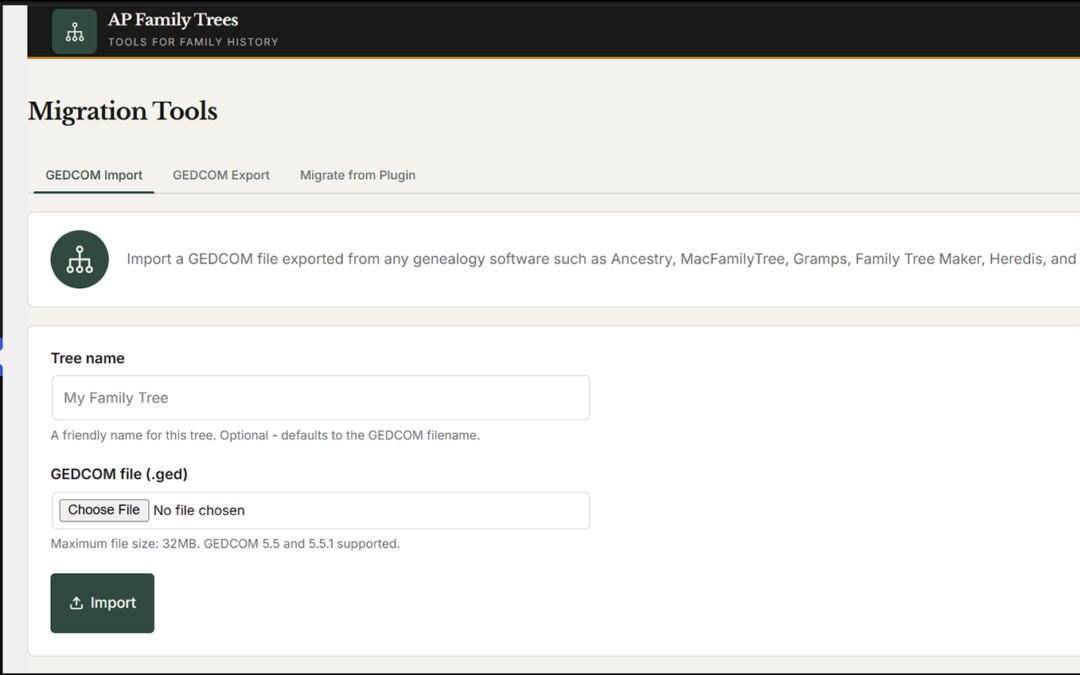
If your site already runs on WordPress, AP Family Trees imports a GEDCOM file into WordPress and draws an interactive family tree chart, free. AP Family Archive uses the same data to create a page for each person and family, with a surname index, search and source pages. Both hide living people from visitors automatically, and both can export your tree as a GEDCOM file again, so your data is never locked in.
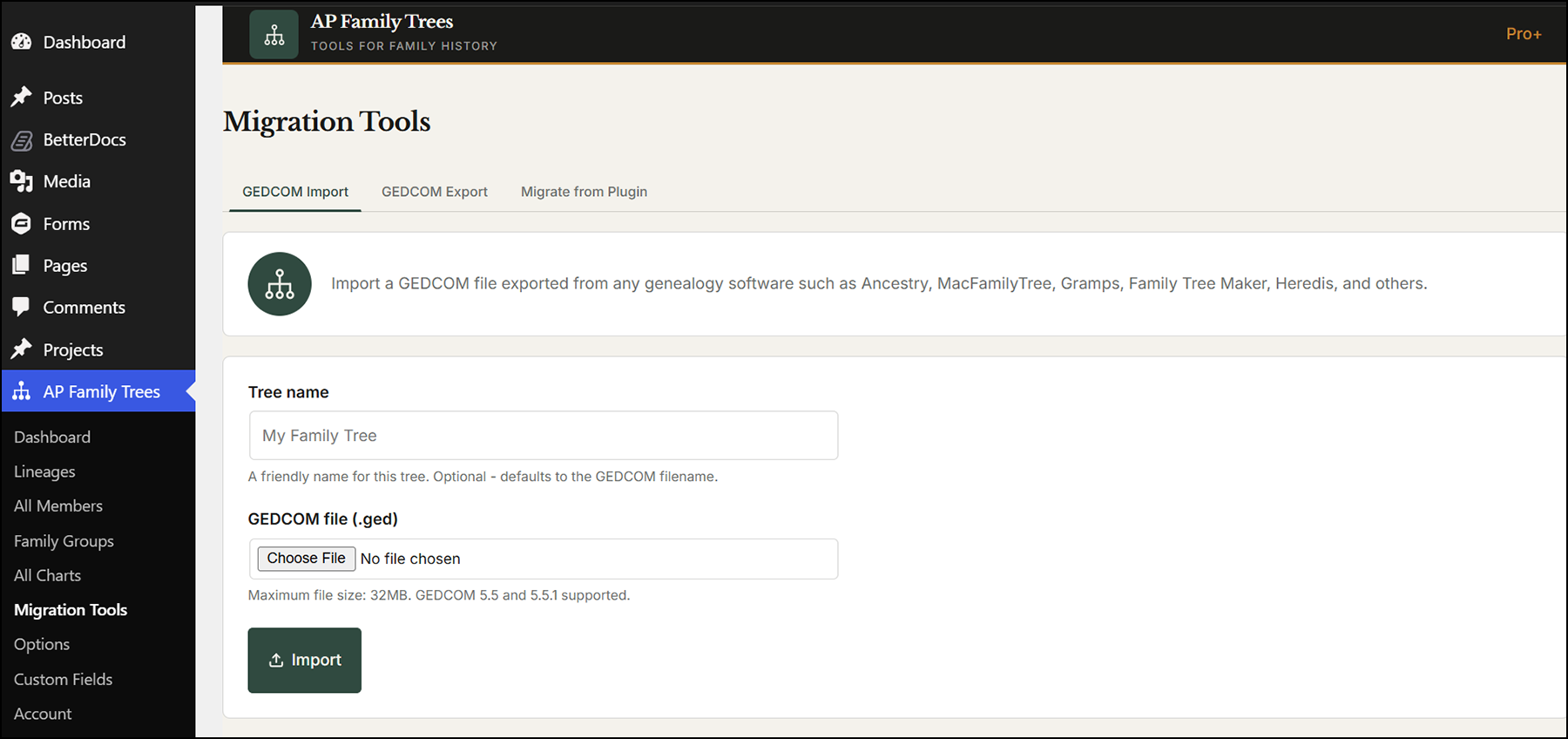
Keep your master tree in your genealogy software or online service, and import a fresh GEDCOM file whenever you want to update the site. For a wider comparison, see the best WordPress genealogy plugins in 2026.
Frequently asked questions
What is a GEDCOM file?
A GEDCOM file is a plain-text file with the .ged extension that stores a family tree - individuals, families, events, places and sources - so it can be moved between genealogy programs and websites.
How do I open a GEDCOM file?
Import it into genealogy software such as Gramps or RootsMagic Essentials, both free, using File > Import. For a quick look without installing anything, use a browser-based viewer that reads the file on your own computer. To see the raw text, open a copy in Notepad or TextEdit.
How to download GEDCOM from Ancestry
Open your tree, click More (the three dots) > Tree Settings > Export tree > Export, then click Download your GEDCOM file. Unzip the download to get the .ged file. Photos and DNA matches are not included.
How to make a GEDCOM file
Build your tree in a genealogy program or online service, then choose Export and select GEDCOM, ideally version 5.5.1. The program writes the file for you; you never need to write one by hand.
What is a GEDCOM file used for?
It is used to move a family tree between programs and websites, to back up your research in a format that does not depend on one company, and to share a tree with other researchers.
Is a GEDCOM file safe to open?
Yes. It is a plain-text file and cannot run code. As with any file, only open ones from people you trust, and remember it may contain other people's personal details.
Can I open a GEDCOM file on my phone?
Some mobile genealogy apps can import GEDCOM files, but a computer with free software such as Gramps or RootsMagic Essentials is much easier.
Can I convert a GEDCOM file to PDF or Excel?
Not directly. Import it into genealogy software, then print charts and reports to PDF, or export lists of people to a spreadsheet, from there.
Does a GEDCOM file include DNA results?
No. DNA matches and ethnicity estimates stay with the company that tested you.
Is GEDCOM free to use?
Yes. GEDCOM is an open standard published by FamilySearch, and any program can read or write it without paying.
Put your GEDCOM file to work
Import your GEDCOM file into WordPress and see your family tree on your own site in minutes. Both plugins are free on WordPress.org.
Disclosure: AncestorPress makes AP Family Trees and AP Family Archive, which import and export GEDCOM files and are mentioned near the end of this guide. Everything else applies whatever software you use. Details were last checked in September 2026.